
Credits and awards
Expand on your experience and showcase your expertise through your credits. Access your credits and awards section by choosing Edit Profile in the dropdown menu from your name after logging in.
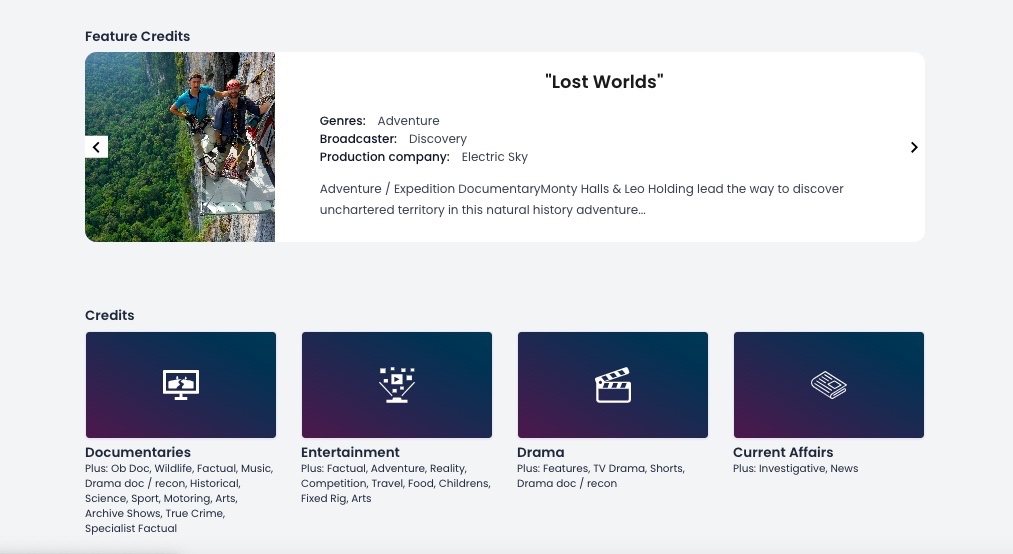
Credit genres
Before you add your credits, you need to select the genres within which you have experience. Potential clients will be able to filter results based on these genres to enable them to get to the most relevant credits fast.
How to add a credit genre
How to add a credit genre
- Click 'Edit Profile', and navigate to your Genre section
- Starting with main genre titles, select those for which you have credits.
- Once main genre headings have been selected, sub-genres are opened up. Continue to select sub-genres where you have experience. (You'll be adding credits later).
Managing your credit genres
Remember, potential clients will be able to see your most relevant credits if they choose to filter based on experience, so don't add genres unless you have a reasonable amount of credits in that type of production.
To watch a 'How-to' video demo click here.
Remember, potential clients will be able to see your most relevant credits if they choose to filter based on experience, so don't add genres unless you have a reasonable amount of credits in that type of production.
To watch a 'How-to' video demo click here.
Basic credits
By basic credits we mean credits appearing as they commonly do on CVs.
How to add basic credits
How to add basic credits
- From the '+' symbol next to 'Edit profile' select 'Manage Credits'.
- Start with the main genre titles and add all credits relating to it. i.e. All documentaries in Documentary section.
- Next select sub genres and add those credits relating to those sections. Remember, a credit may belong in more than one sub-genre.
- You can either type directly into the field provided, or copy and paste from a separate document.
Best practice tips
When entering basic credits, we recommend including: The title of the show or production, the broadcaster or media outlet, the production company or significant person and a brief description of your role within it. Take care to display credits in a way that’s easy to read and keep the formatting consistent.
To watch a 'How-to' video demo click here.
To watch a 'How-to' video demo click here.
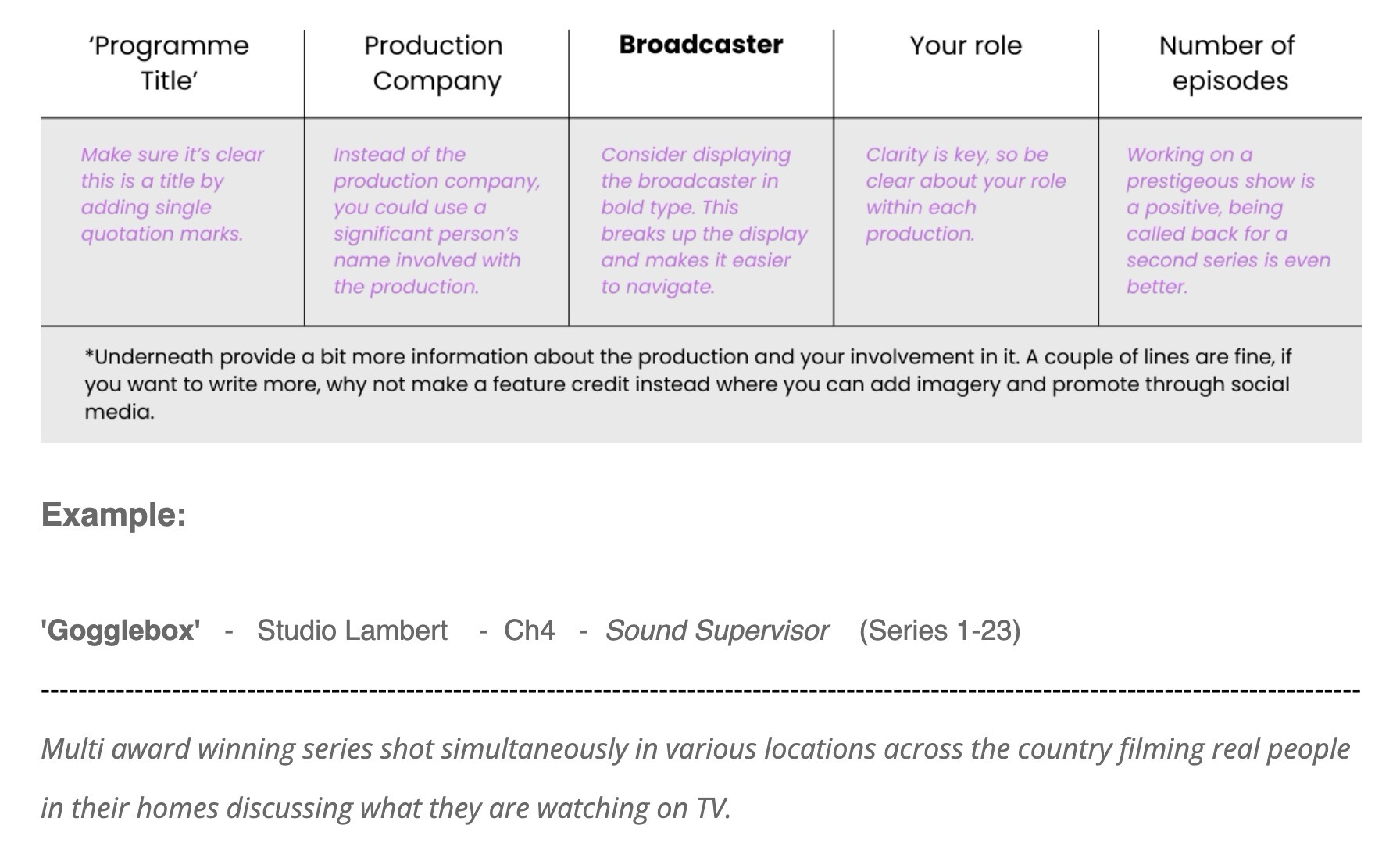
For more information on basic credit entry, read more our connections#27 newsletter.
If you’d like to draw attention to a specific entry, it’s worth creating a featured credit. To see how to create featured credits, take a look at the Featured Credits section below.
If you’d like to draw attention to a specific entry, it’s worth creating a featured credit. To see how to create featured credits, take a look at the Featured Credits section below.
Featured credits
The featured credits section is an opportunity to draw attention to specific projects that demonstrate your skills and experience to potential clients. Adding featured credits to your profile is also a fantastic way to increase your visibility within search engines. The more subject-relevant writing associated with your profile, the more search engines will direct searchers to it. The Sab Network website has been designed for the highest visibility so make the most of it!
How to add featured credits
How to add featured credits
- From the '+' symbol next to 'Edit profile' select 'Manage Credits'.
- Navigate to the bottom of the page and select 'Add a new feature credit.
- Fill in all the required fields including allocating the feature credit to a genre or genres. This will designate the pages the feature credit will appear on. (You only need to allocate to sub-genres, they will automatically be shown in the parent categories).
Best practice tips
The main body of text should go in the body copy field. You can also add images in this field by clicking on the picture icon. Ensure you add at least one image in the 'select a new photo' section as this will become the feature image as it is pulled through to your profile page and credit genre page/s.
You should aim to have a minimum of one featured credit per sub-genre, however, the featured credit section is the area with the most growth potential so consider adding more whenever you’re looking to improve your profile. We also use these to promote across social media and newsletters to production.
To watch a 'How-to' video demo click here.
The main body of text should go in the body copy field. You can also add images in this field by clicking on the picture icon. Ensure you add at least one image in the 'select a new photo' section as this will become the feature image as it is pulled through to your profile page and credit genre page/s.
You should aim to have a minimum of one featured credit per sub-genre, however, the featured credit section is the area with the most growth potential so consider adding more whenever you’re looking to improve your profile. We also use these to promote across social media and newsletters to production.
To watch a 'How-to' video demo click here.

Awards
Awards are a fantastic way to demonstrate to clients the high level of your experience. Nominations should also be included here. To add extra detail, we recommend you create featured credits for those award winning projects which you can link to the awards.
How to add awards
How to add awards
- From the '+' symbol next to 'Edit profile' select 'Manage awards'.
- Click 'Add Award'.
- Fill out the required fields and click 'Create award'.
Best practice tips
If you have received awards for you work, it's also worth mentioning this in your summary. For example: “Award winning DOP with more than 20 years experience working on.”
If you have received awards for you work, it's also worth mentioning this in your summary. For example: “Award winning DOP with more than 20 years experience working on.”